How To Create Thumbnail On
Introduction
Creating attractive thumbnails is very important for content creators on YouTube, TikTok, Facebook, Instagram, and many other social media platforms. A thumbnail is the first thing viewers notice before clicking on a video. If the thumbnail looks professional, colorful, and interesting, people are more likely to open the video. Nowadays, artificial intelligence tools make thumbnail designing much easier, faster, and more creative. One of the most popular AI tools for this purpose is Gemini.
Google Gemini helps users generate ideas, create prompts, write text, and even design thumbnail concepts within seconds. Many beginner creators do not know graphic designing software like Photoshop or Canva, so Gemini becomes a helpful solution for them. By using simple prompts and creative instructions, users can create eye-catching thumbnails without spending hours editing images manually.
In this article, you will learn the complete method of creating thumbnails on Google Gemini, step by step, with detailed explanations, tips, examples, and advanced prompt ideas.
What Is Google Gemini?
Google Gemini is an advanced AI assistant developed by . It helps users perform different tasks like writing, researching, generating ideas, creating content, and designing concepts. Many creators use Gemini for YouTube scripts, titles, descriptions, hashtags, and thumbnail prompts.
Gemini uses artificial intelligence to understand user instructions and provide creative outputs. If you write a detailed thumbnail prompt, Gemini can generate excellent ideas and visuals according to your requirements.
Why Thumbnails Are Important
Before learning the method, it is important to understand why thumbnails matter so much.
Increase Click Through Rate
A good thumbnail increases the chances of people clicking on your video. Bright colors, clear text, and emotional expressions attract viewers quickly.
Improve Video Performance
YouTube and other platforms recommend videos with higher click rates. A professional thumbnail can improve video reach and performance.
Build Your Brand
Consistent thumbnails help viewers recognize your content style. This builds your personal brand over time.
Make Videos Look Professional
Even if your video is simple, a good thumbnail makes it look high quality and professional.
Requirements Before Creating Thumbnails
Before starting, make sure you have the following things ready.
Google Account
You need a Google account to use Gemini.
Internet Connection
A stable internet connection helps generate results faster.
Creative Idea
Think about your video topic before creating the thumbnail.
Thumbnail Text
Prepare short and attractive text for your thumbnail.
How To Open Google Gemini
The first step is opening Gemini.
Using Mobile
- Open your browser.
- Visit Google Gemini.
- Login with your Google account.
Using Computer
- Open Chrome or another browser.
- Go to Gemini’s website.
- Sign in with your Google account.
After login, you can start giving prompts.
Understanding Thumbnail Prompts
A prompt is an instruction you give to AI. Better prompts create better thumbnails.
Simple Prompt Example
“Create a YouTube thumbnail for a gaming video.”
This prompt is too basic.
Detailed Prompt Example
“Create a professional YouTube thumbnail for a Free Fire gaming video, realistic gamer holding mobile phone, fire background, glowing effects, bold yellow text, cinematic lighting, ultra HD.”
The second prompt gives much better results because it contains details.
Important Elements Of A Good Thumbnail Prompt
To create high quality thumbnails, always include these important details.
Video Topic
Clearly mention your video topic.
Example:
- Tech tutorial.
- Gaming video.
- TikTok trick.
- Educational content.
Character Description
Mention the person or character you want.
Example:
- Young boy.
- Gamer.
- Tech expert.
- Shocked face expression.
Background Style
Choose a creative background.
Example:
- Neon lights.
- Fire effects.
- Dark room.
- City lights.
Text Style
Describe the thumbnail text style.
Example:
- Bold yellow text.
- Large white font.
- Red glowing text.
Lighting Effects
Lighting makes thumbnails look cinematic.
Example:
- Dramatic lighting.
- Neon glow.
- Soft shadows.
- Bright reflections.
Image Quality
Always mention quality details.
Example:
- HD.
- Ultra HD.
- 4K quality.
- Realistic style.
Step By Step Method To Create Thumbnail On Gemini
Step 1: Open Gemini
Open the Gemini website or app and login.
Step 2: Write Your Prompt
Write a detailed thumbnail prompt.
Example: “Create a YouTube thumbnail for a video about downloading TikTok videos, realistic young boy holding smartphone, shocked expression, red and yellow colors, neon background, bold text, cinematic lighting, ultra HD.”
Step 3: Generate Results
Click the generate button and wait a few seconds.
Step 4: Review The Thumbnail
Check if the thumbnail matches your idea.
Step 5: Improve The Prompt
If needed, improve your prompt.
Example:
- Add brighter colors.
- Make face more realistic.
- Increase text size.
- Add glowing effects.
Step 6: Download The Thumbnail
Save the final image to your device.
Best Thumbnail Styles To Create
Gaming Thumbnails
Gaming thumbnails usually include:
- Bright colors.
- Explosions.
- Weapons.
- Angry or excited expressions.
Example prompt: “Create a gaming thumbnail with a realistic gamer, glowing effects, action background, bold text, dramatic lighting.”
Tech Thumbnails
Tech thumbnails should look modern and clean.
Example prompt: “Create a tech tutorial thumbnail with smartphone, blue neon lights, futuristic style, professional design, ultra HD.”
Reaction Thumbnails
Reaction thumbnails focus on facial expressions.
Example prompt: “Create a shocked reaction thumbnail, surprised face, bright background, bold text, viral YouTube style.”
Educational Thumbnails
Educational thumbnails should look simple and clear.
Example prompt: “Create an educational YouTube thumbnail with clean design, blue and white colors, professional text style, realistic teacher.”
Cinematic Thumbnails
Cinematic thumbnails use dramatic lighting and realistic effects.
Example prompt: “Create a cinematic YouTube thumbnail with dark shadows, glowing lights, realistic face, movie style editing.”
How To Make Thumbnails More Attractive
Use Bright Colors
Bright colors grab attention quickly.
Best colors:
- Yellow.
- Red.
- Orange.
- Blue.
Use Big Text
Small text is difficult to read on mobile screens.
Focus On One Subject
Too many objects make thumbnails confusing.
Add Facial Expressions
Human emotions attract viewers.
Use High Contrast
Contrast helps important elements stand out.
Common Mistakes To Avoid
Using Too Much Text
Keep thumbnail text short and clear.
Low Quality Images
Blurry thumbnails reduce clicks.
Overcrowded Design
Too many effects can make thumbnails messy.
Poor Color Combination
Avoid dull or confusing colors.
Best Thumbnail Prompt Examples
Gaming Prompt
“Create a YouTube gaming thumbnail with realistic Free Fire character, fire background, glowing red effects, bold yellow text, cinematic lighting, ultra HD.”
Tech Prompt
“Create a modern tech thumbnail with smartphone, blue neon lights, realistic young boy, futuristic background, professional style.”
TikTok Prompt
“Create a viral TikTok tutorial thumbnail with shocked expression, mobile screen, colorful background, glowing text, ultra HD.”
Movie Style Prompt
“Create a cinematic movie-style thumbnail with dramatic shadows, realistic face, dark background, glowing lights.”
Using Gemini With Canva
Many creators combine Gemini and for better results.
How It Works
- Generate ideas using Gemini.
- Download images.
- Edit final thumbnail in Canva.
This method gives professional quality thumbnails.
Benefits Of Using Gemini For Thumbnails
Fast Results
AI creates ideas within seconds.
Beginner Friendly
No advanced editing skills are needed.
Creative Designs
Gemini helps generate unique concepts.
Free To Use
Many Gemini features are available for free.
Advanced Prompt Writing Tips
Be Specific
Detailed prompts give better results.
Mention Emotions
Expressions improve thumbnail quality.
Add Color Instructions
Colors help AI understand your style.
Describe Camera Angle
Example:
- Close-up shot.
- Side profile.
- Wide angle.
Example Of Professional Prompt
“Create a professional YouTube thumbnail for a video about secret TikTok tricks, realistic young man holding smartphone, shocked expression, blue neon background, bold yellow text saying ‘SECRET TRICK’, cinematic lighting, ultra HD, viral YouTube style.”
How To Create Viral Style Thumbnails
Viral thumbnails usually contain:
- Emotional faces.
- Bright colors.
- Large text.
- Mystery elements.
- High contrast.
Example: “Create a viral YouTube thumbnail with shocked face, glowing arrows, bright red background, bold text, dramatic lighting.”
Thumbnail Size Recommendation
For YouTube, the recommended size is:
- 1280 × 720 pixels.
This size looks clear on mobile and desktop devices.
Best Fonts For Thumbnails
Popular thumbnail fonts include:
- Bold fonts.
- Sans-serif fonts.
- Large readable fonts.
Avoid complicated font styles.
Tips For Mobile Users
Most viewers watch videos on mobile phones, so:
- Use large text.
- Keep designs simple.
- Focus on one main object.
- Avoid tiny details.
Can Beginners Use Gemini?
Yes, beginners can easily use Gemini. The process is simple:
- Open Gemini.
- Write a prompt.
- Generate results.
- Download the image.
No professional editing skills are required.
Future Of AI Thumbnail Design
Artificial intelligence is changing content creation rapidly. In the future, AI tools like Gemini may create complete thumbnails automatically with:
- Smart text placement.
- Automatic color correction.
- Viral design suggestions.
- One-click editing.
This will help creators save more time.
Final Tips For Better Thumbnails
- Study viral YouTube thumbnails.
- Use emotional expressions.
- Keep designs simple.
- Use bright lighting.
- Experiment with prompts.
- Improve your creativity daily.
Conclusion
Creating thumbnails on is easy, fast, and beginner friendly. By writing detailed prompts, adding creative instructions, and using proper colors and lighting effects, anyone can create professional thumbnails for YouTube, TikTok, Facebook, and other social media platforms. A good thumbnail increases clicks, improves video performance, and helps build a strong content creator brand. If you practice writing better prompts and experiment with different styles, your thumbnails can become more attractive and viral over time.
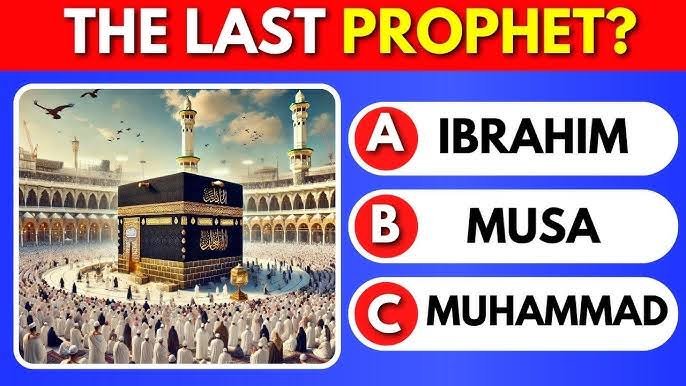
Create a vertical quiz style image (9:16) for social media in the style of TikTok / YouTube quizzes.
Design details:
Blue radial gradient background
Clean modern quiz layout
Large white rectangle at the top for the question
Question text in bold Roman English inside the white box
Below the question, display three answer options:
Each option in a rounded blue button
A red numbered circle (1, 2, 3) on the left
A small image thumbnail next to the number
Option text in Roman English on the right
Remove all logos, watermarks, or social media icons.
Example (Ready-to-use content inside prompt):
Question:
Nabi Kareem ﷺ ki sunnat mein kitni baar miswak farmaya karte thay?
Option 1:
1 Bar
Option 2:
3 Bar
Option 3:
5 Bar
Create a vertical quiz style image (9:16) for social media in the style of TikTok / YouTube quizzes.
Design details:
Blue radial gradient background
Clean modern quiz layout
Large white rectangle at the top for the question
Question text in bold Roman English inside the white box
Below the question, display three answer options:
Each option in a rounded blue button
A red numbered circle (1, 2, 3) on the left
A small image thumbnail next to the number
Option text in Roman English on the right
Remove all logos, watermarks, or social media icons.
Example (Ready-to-use content inside prompt):
Question:
Nabi Kareem ﷺ ki sunnat mein kitni baar miswak farmaya karte thay?
Option 1:
1 Bar
Option 2:
3 Bar
Option 3:
5 Bar